Stitch Prompt Guide: Effective Prompting for Better UI/UX Designs
- Aug 12, 2025
- 4 min read
Google’s Stitch is quickly emerging as one of the most exciting AI tools for rapid UI/UX prototyping. Built on Google’s Gemini models and boosted by the acquisition of Galileo AI, Stitch can turn plain text prompts into polished Figma layouts, responsive HTML, and styled mockups. But as with any generative tool, the output is only as good as the input.
That’s where prompting comes in.
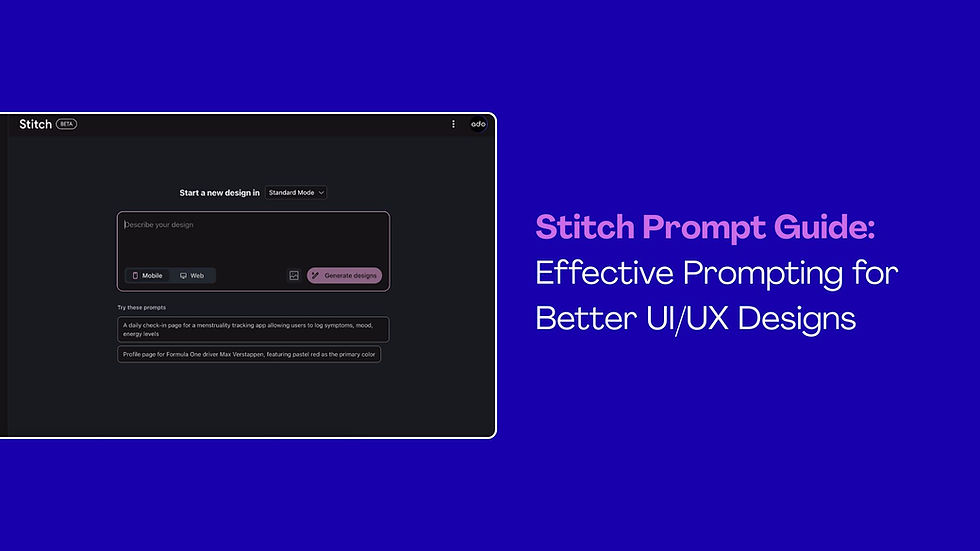
If you know how to guide Stitch with precise, incremental, and visually descriptive prompts, you can dramatically improve the quality and usability of the designs it produces. This guide breaks down practical strategies, examples, and pro tips so you can make Stitch your true design co-pilot.
Let's get started with Stitch Prompt Guide -
1. Starting Your Project in Stitch: Broad vs. Detailed Prompts
When you first open Stitch, you have two main approaches:
High-Level Prompts for Exploration
If you’re brainstorming or building something complex, start with a broad concept. This gives Stitch room to explore different directions before you zoom in on specifics.
Example:
"An app for marathon runners."
Here, Stitch will give you a baseline design — colors, fonts, and layouts that feel like running culture — without getting bogged down in details.
Detailed Prompts for Precision
If you already have a clear idea, add specific functionalities and features right from the start.
Example:
"An app for marathon runners to engage with a community, find partners, get training advice, and find races near them."
This helps Stitch produce a design that’s immediately closer to your vision, reducing the need for heavy revisions later.
2. Setting the Vibe: How Adjectives Shape Your Design
In UI/UX, tone matters. A “vibrant” fitness tracker will look very different from a “minimalist” meditation app, even if both track progress.
By adding adjectives to your prompt, you help Stitch align color palettes, typography, and imagery to your intended mood.
Examples:
"A vibrant and encouraging fitness tracking app."
"A minimalist and focused app for meditation."
Think of adjectives as your shortcut to brand personality.
3. Refining Designs Screen by Screen
Once you have your base design, resist the temptation to overhaul everything at once. Stitch works best with small, targeted changes applied one screen or component at a time.
Be Specific
Instead of saying “Make the homepage better”, tell Stitch exactly what to change and how.
Examples:
"On the homepage, add a search bar to the header."
"Change the primary call-to-action button on the login screen to be larger and use the brand's primary blue color."
Focus on a Single Screen
Targeting a specific feature makes it easier to compare before-and-after results.
Example (E-commerce Detail Page):
"Product detail page for a Japandi-styled tea store. Neutral, minimal colors, black buttons, soft, elegant font."
4. Describing Imagery with Precision
The way you describe imagery can make or break your design’s aesthetic.
If your app needs a distinct look, spell out the visual style and context.
Example:
"Music player page for 'Suburban Legends.' Album art is a macro, zoomed-in photo of ocean water. Page background should reflect this."
This ensures that your visual elements and theme work together, instead of feeling mismatched.
5. Controlling the App’s Theme
Colors
You can request either exact colors or mood-based palettes.
Specific: "Change primary color to forest green."
Mood-based: "Update theme to a warm, inviting color palette."
Fonts & Borders
Typography and element styling have a huge influence on perceived brand quality.
Fonts: "Use a playful sans-serif font." or "Change headings to a serif font."
Borders: "Make all buttons have fully rounded corners."
Combine them for full theme control:
"Book discovery app: serif font for text, light green brand color for accents."
6. Modifying Images in Your Design
When updating images, Stitch needs clear targeting.
General images: "Change background of all product images on landing page to light taupe."
Specific images: "On 'Team' page, image of Dr. Carter (Lead Dentist): update her lab coat to black."
If you’re changing the theme colors, mention whether images should reflect this update:
"Update theme to light orange. Ensure all images and icons match this new color scheme."
7. Changing App Language
For localization, Stitch can rewrite all text elements in another language with a single command.
Example:
"Switch all product copy and button text to Spanish."
This is especially useful for multi-market startups who need quick translations for prototypes.
8. Pro Tips for Getting Better Results in Stitch
Here are some best practices to keep in mind:
Be clear & concise — Ambiguous prompts lead to mismatched designs.
Iterate & experiment — Don’t expect perfection on the first try.
One major change at a time — Easier to measure impact and revert if needed.
Use UI/UX keywords — Terms like “navigation bar,” “call-to-action,” “card layout” help Stitch identify elements correctly.
Reference elements specifically — e.g., “primary button on sign-up form,” “image in hero section.”
Refine with feedback loops — If a change misses the mark, rephrase and try again.
Why Prompting Skills Matter More Than Ever
Even with an AI assistant like Stitch, design thinking still comes from you. The AI can generate layouts, but you decide what works for your users, brand, and business model.
A founder who learns to craft prompts effectively can:
Move from idea to prototype in days, not weeks
Communicate design intent without hiring early-stage designers
Test multiple variations before committing to development
But remember — AI output is still limited by training data, and it lacks the human intuition that seasoned designers bring to the table. Stitch is a force multiplier, not a full replacement.
Final Thoughts: Becoming Fluent in Stitch
Think of Stitch prompting like learning a new design language. At first, you’ll experiment with basic sentences. Over time, you’ll craft complex, highly nuanced instructions that make the AI’s output feel tailor-made for your project.
As Google refines Stitch’s visual intelligence, expect:
Better context awareness (understanding brand identity without constant reminders)
More cohesive multi-screen outputs
Smoother integration with real-world design systems
Until then, your best tool is prompt precision. The clearer your direction, the closer your AI co-designer gets to matching your vision.


This website is a great resource for finding dependable home services near me. I explored multiple business listings and quickly connected with professionals offering quality repair and maintenance services nearby.
The UI UX prompt guide is very practical, especially for beginners learning design tools. I once tried similar work and used python assignment help to manage my workload. It helped me understand how prompts shape better outputs.Nice post. Your post make me smile.
The prompt guide for UI and UX design is very helpful for beginners and learners. I remember trying design tools and used Assignment Writing Service UK to manage my workload. It made me realize how prompts can improve design quality. Nice post.
This article gives the light in which we can observe the reality. This is very nice one and gives indepth information. Thanks for this nice article 카지노 이벤트
Thanks for sharing the information. I really impressed after read this because of some quality work and informative thoughts 온카114